

Switch theme
Orders: QR Ordering and Delivery
The Orders screen collects orders that do not start at the register: guests' orders from the QR menu at the table, and orders from a connected delivery platform. A new QR order and a new order from a delivery platform are announced with a sound, and the number of new orders you have not viewed yet is shown next to the Orders item in the main menu.
Availability
The Orders item is shown when the venue uses QR ordering or a delivery platform integration. If you do not see it, your venue does not use these features.
Orders screen
Orders are arranged in tabs according to what needs to be done:
| Tab | What it contains |
|---|---|
| Needs Action | New QR orders waiting for approval and delivery orders that need your action. |
| In Progress | Delivery orders being prepared. |
| Ready | Delivery orders ready for the courier. |
| Completed | Picked-up and cancelled orders of the current shift. |
Click an order to open its details and actions. Above the list are the search (the magnifier icon; by table, order number or platform code) and, when orders come from more than one source, the source choice (for example QR or the delivery platform).
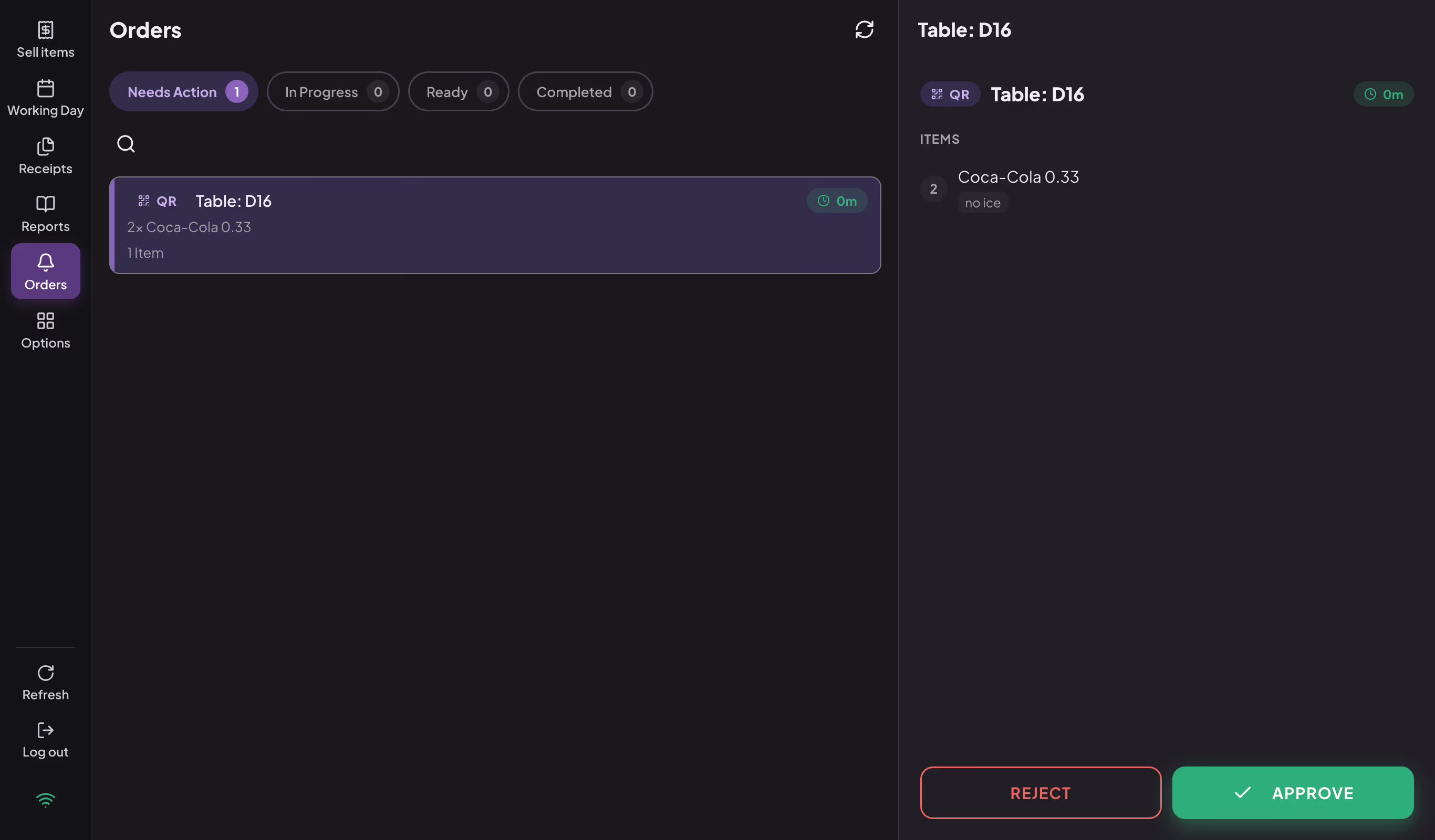
Orders screen with an open QR order
QR ordering
The guest scans the QR code on the table, chooses food and drinks in the menu on their phone and sends the order. The order arrives at the register and waits for a waiter to approve it — only then is it sent to the bar and kitchen. In the menu, the guest follows the order status and the table's total bill; they pay the waiter, as usual.
How a guest gets access to the table
The table's QR menu works while the table is open for guests (checked in):
- the table opens automatically when a waiter sends the first order for it, or manually — long-press the table and choose Check In;
- if PIN protection is on, the guest enters the table PIN right after scanning the QR code, before the menu opens. The app shows the PIN when the table opens; you see it again by long-pressing the table and choosing QR Ordering, and you can also print it there;
- the table closes when you choose Check Out, automatically when the last receipt on the table is paid or cancelled, or after the time set in Administration. After check-out, guests can no longer order with the QR code.
While the table is not open, the menu tells the guest that the table is not active.
Approving a QR order
- When a QR order arrives, open Orders → Needs Action.
- Click the order and check the items and the guest's note.
- Click APPROVE — the order is added to the table as a new round and sent to the bar and kitchen. Or click REJECT — the guest sees in the menu that the order was rejected.
If another waiter is serving the table and you do not have the Allow access to all tables permission, the app asks you to confirm ("Another waiter's table") — you can still approve the order; the round is issued under your name.
An approved order leaves the Orders screen and is handled on the table like any other round (see Hospitality Sales). On the table plan, a table with orders waiting for approval has a badge with a number, and the PIN screen shows the number of waiting orders.
Warning
Approving and rejecting QR orders requires an internet connection.
QR ordering settings
You turn on QR ordering in Administration, under My Account → Settings, in the QR Ordering section:
| Setting | What it does |
|---|---|
| Enable QR Ordering | Turns on the QR menu for tables (it also turns on table check-in). |
| PIN Protected | When on, the guest enters the table PIN after scanning the QR code, before the menu opens; when off, ordering is open, without a PIN. |
| Auto Check-Out (hours) | After how many hours the table closes by itself (0–48; 0 = manual check-out only). |
| Brand Color | The color of the menu the guest sees. |
You print the QR codes for the tables in Administration, on the Table Plan Settings page (⋮ menu → Print QR Codes). The menu the guest sees is built from your items — you enter an item's description, image and allergens in Administration (see Inventory).
Availability
QR ordering is available in hospitality, when the QR ordering module is turned on.
Delivery
Orders from a delivery platform
If the venue is connected to a delivery platform through an integration, orders arrive by themselves. An order whose items are all linked to your items goes straight to In Progress and is sent for preparation. The Needs Action tab holds only the orders that need you:
- link the platform's items that are not linked to your items once (Map Product) — the app remembers them for the next orders;
- you confirm a scheduled order with the CONFIRM PRE-ORDER button;
- if the venue requires staff confirmation before delivery orders go to the kitchen, you send each order with the SEND TO KITCHEN button;
- you reject an order you cannot prepare with the REJECT button — depending on the platform, you choose a reason or write a message to the customer. An order that is already ready can no longer be rejected;
- when the platform supports it, you can temporarily pause receiving orders under Store on platform (for a set time or for the rest of the day).
Each delivery order gets a number (for example #12) that is printed on the order slip, so the courier and the staff can recognize the order easily.
Processing a delivery order
The order moves through the tabs of the Orders screen:
- In Progress — when the order is ready, open it and click MARK READY. If the venue has a kitchen display, the order moves to Ready by itself when the kitchen completes it.
- Ready — click ISSUE RECEIPT: the receipt is issued with the Other noncash payment method (with the discount and pricelist set up for that platform, if any), and a packing slip is printed.
- When the courier picks up the order, click PICKED UP — the order moves to Completed. If you click it before issuing the receipt, the ISSUE RECEIPT button stays available on the completed order.
With the PRINT button in the order details, you print the order slips or the packing slip again.
If the platform cancels an order whose receipt has already been issued, the app cancels the receipt automatically. If it cannot, it shows Manual Storno Required — then cancel the receipt yourself on the Receipts page.
Note
A receipt for a delivery order is issued only on a cash register or a remote ordering device. On other devices, the order details are Display Only.
Availability
Receiving orders directly from a delivery platform requires the delivery module and connecting the venue to the platform, which Konty support does. The platforms and the intake settings are shown in Administration, on the Delivery Platforms page (see Settings).