

Switch theme
Kitchen Display
The kitchen display is a screen in the kitchen where cooks see orders as soon as the waiter sends them — instead of, or alongside, the printed order slip. When an order is ready, the cook marks it on the screen, and the waiter sees on the table plan that it can be served.
Availability
The kitchen display is available in hospitality, when the kitchen display module is turned on. A venue can have one kitchen display.
Setting up the kitchen display
For the kitchen display, use a computer, tablet or screen with the Konty app installed:
- Install the app and log in with the venue account (see Installation and Log In).
- Register the device as a Kitchen Display System (KDS) (see Devices).
After registration, the device always opens the kitchen screen and does not ask for a PIN.
Which orders reach the kitchen
When a waiter sends a round with the ORDER button, the display receives the items prepared in the kitchen: items of the Food type and items whose Print to field is set to Kitchen. Drinks and other items go to the bar, as before.
Fast orders, approved QR orders and delivery orders also reach the display. The card of a delivery order shows the platform and the order number.
Each new order is announced with a sound.
Kitchen screen
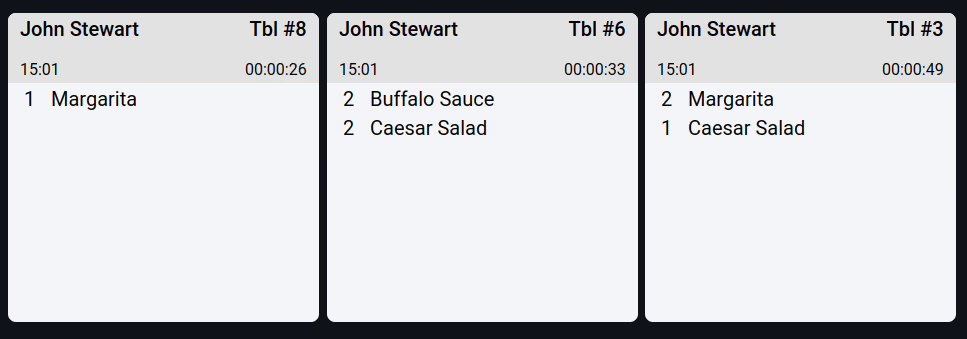
Kitchen screen with open orders
Each order is one card. A card shows:
- the waiter who sent the order and the order number;
- the table;
- the sending time and a timer showing how long the order has been waiting;
- the items with their quantities and comments.
At the top of the screen are the refresh button, the Opened and Completed tabs (with the number of orders) and, on the right, the page thumbnails: one for each page of orders, with the orders shown as small squares in their timer color. Click a thumbnail to go to that page. On the Completed tab, the thumbnails are replaced by arrows for moving between pages. On a phone, the Opened and Completed tabs are two buttons with an icon and the number of orders, and there are no page thumbnails.
Completing an order
- Click the card's header.
- Click COMPLETE.
The order moves to Completed, and the table on the waiter's table plan gets a mark showing that the order is ready. The waiter removes the mark by long-pressing the table (Confirm Ready). A delivery order moves to Ready on the Orders screen.
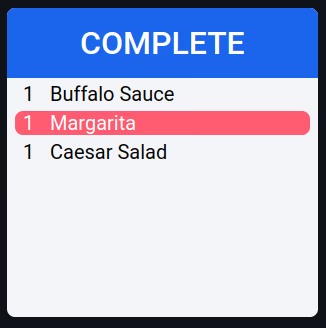
Completing an order
Part of an order: when only one item is ready (for example a salad, while the main course is still being prepared), click that item — a check mark appears next to it. Click it again to remove the check mark. When you have checked all items, COMPLETE appears on the card by itself.
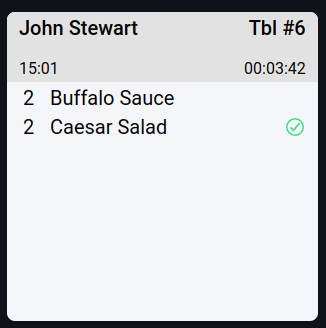
One item is ready, the others are still being prepared
Recalling a completed order
If you marked an order as completed by mistake:
- Open the Completed tab.
- Click the order card's header, then RECALL.
The order returns to the open orders.
Timers
The timer on a card shows how long the order has been waiting (hours:minutes:seconds). When an order waits longer than the yellow timer, the card's header turns yellow; after the red timer, it turns red. By default these are 5 and 7 minutes; you change them in the screen settings.
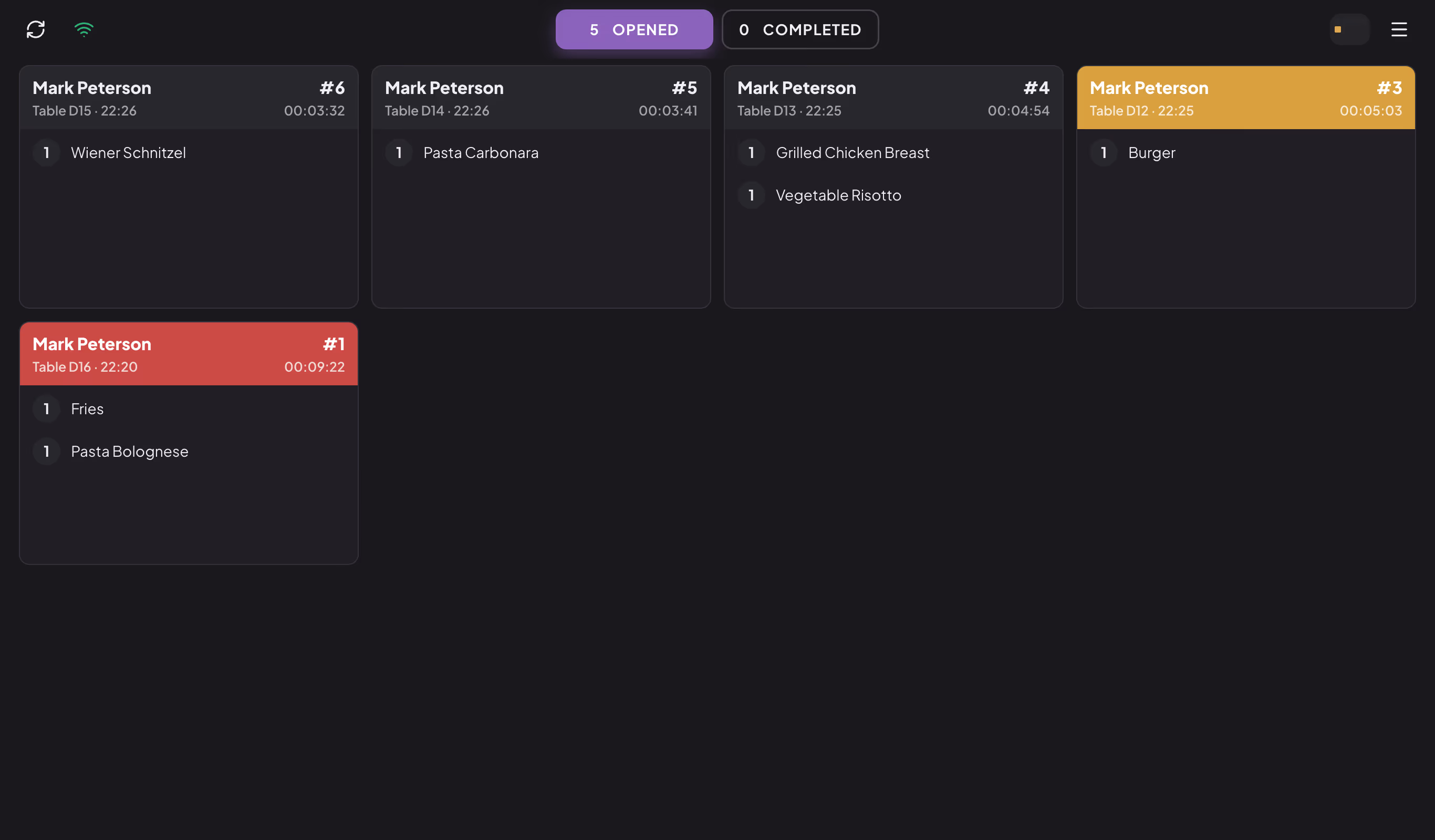
Cards by waiting time: regular, yellow and red
All-day overview
Open the screen menu (the icon with three lines in the top right corner). The All day section shows, by category, how many of each dish are in the open (not yet completed) orders — how many still need to be prepared. Click a dish to highlight it on all cards; click it again to remove the highlighting. When the list is long, VIEW ALL COUNTS opens the whole list.

All day: a selected dish highlights the orders it appears in
Screen settings
The screen menu also contains the settings, which apply only to that device:
| Setting | What it changes |
|---|---|
| Tickets per page | How many cards fit on the screen (Row number × Column number, from 1 to 8; 3 × 4 by default). |
| Font size | Small, Medium or Large text on the cards. |
| Timers | After how many minutes a card turns yellow and red (1–30 minutes). |
| Dark theme | A dark or light screen background. |
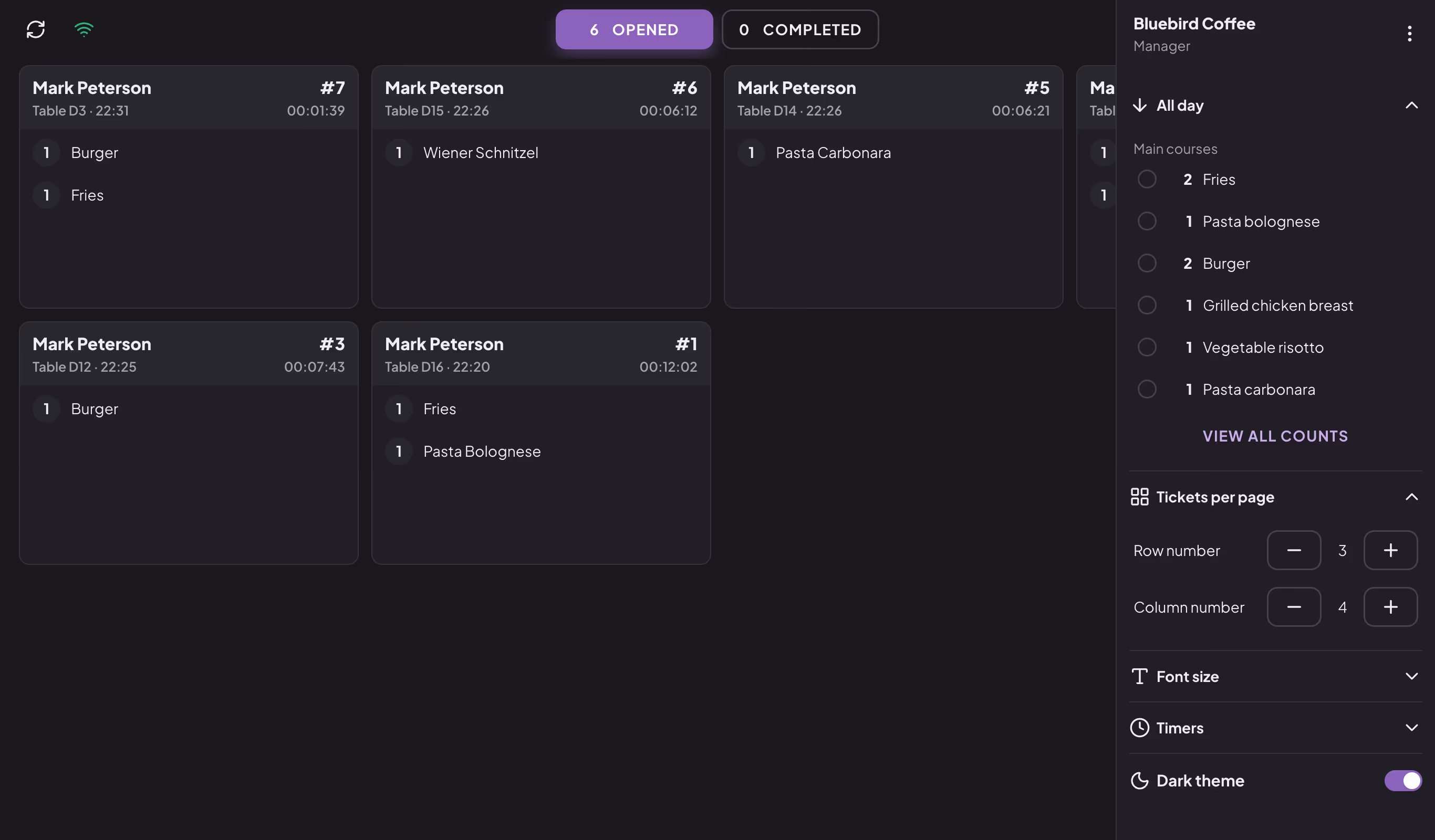
Kitchen screen menu: all-day overview and settings
The ⋮ menu at the top of the side menu has the Manager logout option — it logs the venue account out of the device.
Viewing the kitchen from the register
A waiter or manager can also view the kitchen screen from the register: the KITCHEN button on the table plan (on a phone: ⋮ menu → Kitchen). The button is shown when the venue has a registered kitchen display. From the register the screen is view-only — orders are completed only on the kitchen display. With the Mine only switch you show only the orders you sent.
Note
Employees whose user group has no access to Terminals (in the Administration section of the group's permissions) see only completed orders, without the All day overview and the timer settings.