

Switch theme
Receiving and Dispatching Goods
With a delivery-in note you record goods received from a supplier, and with a delivery-out note goods sent to a buyer or to another venue of your company. The stock of the items changes as soon as you save the document. The items and clients must already exist (see Inventory and Clients).
Availability
Delivery-in and delivery-out notes are used by venues without inventory accounting. When the venue keeps inventory accounting, these items are not in the menu in retail, and in hospitality they are only for viewing earlier documents — you then receive goods with a price calculation and remove them with a write-off (see Inventory Accounting → Two ways of working). The items require the Delivery-in Notes or Delivery-out Notes permission.
What do you want to do?
| Situation | Action |
|---|---|
| Goods arrived from a supplier | Adding a delivery-in note |
| Goods were sent to a buyer | Adding a delivery-out note |
| Goods are moving to another venue of your company | Internal delivery-out note to another venue |
| A document is wrong | Editing and deleting |
Adding a delivery-in note
- In the menu, choose Inventory Accounting → Delivery-in Notes and click ADD. The Delivery-in Note page opens.
- In the Info section, enter the Number, check the Date and choose the Supplier. If the supplier is not on the list, click ADD next to the field and enter them in the form that opens on the right.
- In the Received by field, enter who received the goods. The Comment is optional.
- In the Items section, search for the item by name or code and click it.
- Enter the Quantity. When you receive goods in packs, enter the number of pieces in a pack in the Multiplied by field (for example 3 × 24). Click ADD — the item appears in the table.
- Repeat steps 4 and 5 for the other items. The X icon in a row removes the item.
- Click SAVE.
The delivery-in note is saved and the stock of the items increases by the entered quantities immediately. The app returns to the list of delivery-in notes.
If you add the same item twice, the quantities are added up in one item. The number, supplier, Received by and at least one item are required ("Add at least one item."), and the delivery-in note number must be unique. In hospitality, the date of a delivery-in or delivery-out note can be at most 90 days in the past; for an internal delivery-out note this limit applies in retail too.
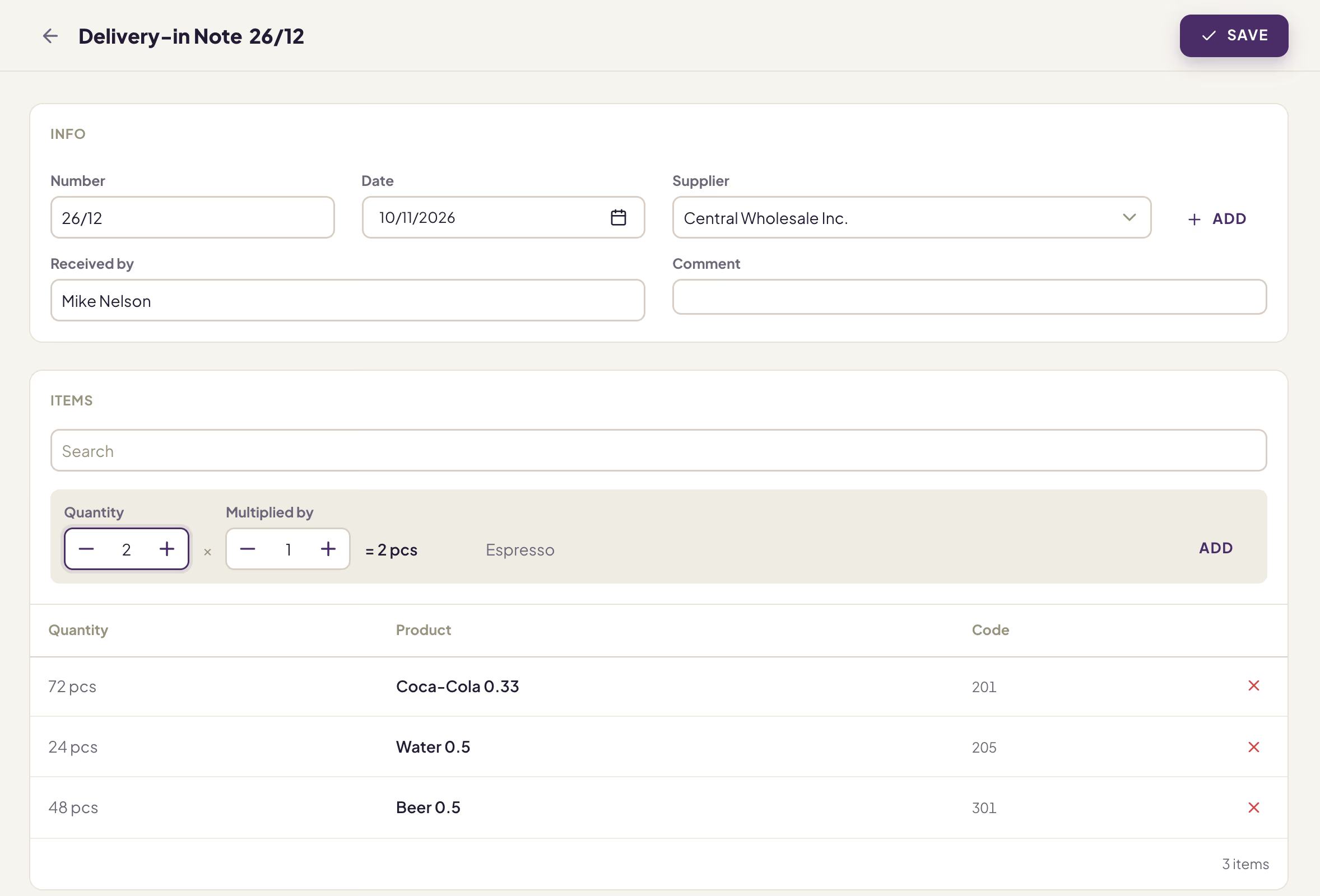
Delivery-in note: the note's details at the top, the items below, SAVE in the header
Adding a delivery-out note
- In the menu, choose Inventory Accounting → Delivery-out Notes and click ADD.
- In the Info section, enter the Number, check the Date and choose the Buyer (you add a new buyer with the ADD button next to the field).
- In the Responsible employee field, enter who dispatched the goods. The Comment is optional.
- In the Items section, add the items as on a delivery-in note: the item, the Quantity, if needed Multiplied by, then ADD.
- Click SAVE.
The delivery-out note is saved and the stock of the items decreases immediately. For an item made of ingredients, the stock of its ingredients decreases.
Internal delivery-out note to another venue
When your company has several venues in Konty, you move goods from one venue to another with an internal delivery-out note. The other venue automatically gets a delivery-in note for the same goods.
Availability
The Internal venue choice is available when your company has at least one more venue in Konty.
- In Inventory Accounting → Delivery-out Notes, click ADD.
- In the Info section, choose Internal venue (instead of Buyer), then choose the venue you are sending the goods to in the Internal venue field.
- Enter the Number, check the Date and fill in Responsible employee.
- Add the items and click SAVE.
The stock in your venue decreases. The receiving venue gets a delivery-in note marked internal, and its stock increases. That delivery-in note is for viewing only: it is changed and deleted through the internal delivery-out note — editing or deleting the delivery-out note also edits or deletes it.
Warning
Items are matched in the other venue by their code. Every item on an internal delivery-out note must have a code, and the receiving venue must have items with the same codes. If an item has no code, the app reports "An internal dispatch requires every product to have a code. Products without a code:" and lists those items; if the other venue has no item with one of the codes, the delivery-out note is not saved and the message lists the missing codes.
On an existing delivery-out note, the Buyer / Internal venue choice can no longer be changed.
Delivery-in and delivery-out note lists
The list shows the Number, Date, the supplier (for delivery-out notes, the buyer), who received or dispatched the goods, and the Comment. A delivery-in note created from another venue's internal delivery-out note is marked internal next to the venue's name.
- Clicking a row opens the document preview: the items with their code and quantity.
- The search finds documents by number and by the name of the supplier or buyer.
- In FILTERS, you choose the supplier (for delivery-out notes, the buyer or internal venue) and the period. Without filters, the list shows documents from all dates.
- EXPORT downloads an Excel file with two sheets: Documents (the documents in the list) and Items (all items of those documents).
- The ⋮ menu in a row offers Details, Print, Edit and Delete. Print opens the print window for the document (number, code, item, quantity; on a delivery-out note also space for the receiver's signature).
Editing and deleting
Editing: in the row's ⋮ menu, choose Edit, change the details or items and click SAVE. The stock is corrected: the quantities from the old document are reversed and the new ones are applied.
Deleting: in the row's ⋮ menu (or the ⋮ menu of the open document), choose Delete, then click CONFIRM when asked "Permanently delete Delivery-in Note?" or "Permanently delete Delivery-out Note?". The document is deleted permanently, and its effect on the stock is reversed.
The Edit and Delete options are unavailable:
- for a delivery-in note marked internal — it is changed through the delivery-out note in the other venue;
- for all delivery-in and delivery-out notes in a venue that keeps inventory accounting.