

Switch theme
Receipts and Reports
In Receipts & reports you review every receipt issued at your registers, create sales reports for any period and check your employees' working hours. This part is meant for owners, managers and accountants. You issue, cancel and correct receipts at the register — here you find them, print them, send them to the customer as a PDF and prepare reports.
What do you want to do?
| Situation | Where |
|---|---|
| Find an earlier receipt, print it or send it to the customer as a PDF | Receipts & Orders |
| Cancel or correct a receipt, issue a final receipt or a credit note | At the register, on the Receipts screen |
| Enter a supplier's invoice | Incoming invoices |
| Create a report for a month or a year, or send it to your accountant | Sales Reports |
| Check how long employees worked, or close a forgotten working day | Working Hours |
Availability
The Receipts & Orders, Sales Reports and Working Hours items are available to employees whose user group has these pages turned on in the Administration section (see Users).
Receipts & Orders
The Receipts & Orders page lists the receipts issued at your venue's registers, with search and filters. The Outgoing tab holds the receipts you issued, and the Incoming tab your suppliers' invoices (see Incoming invoices). Click a row to open the receipt preview.
Finding a receipt
In the Search field, type the receipt number, the employee's name, the buyer's name or TIN, the table, the sector or an item name.
The list and the search always apply to the chosen period. By default, receipts from yesterday at 00:00:00 to today at 23:59:59 are shown. The period is shown as a filter above the table and cannot be removed — if you cannot find an older receipt, widen the period.
- Click FILTERS.
- Choose the period: click TODAY, YESTERDAY, THIS WEEK, THIS MONTH or LAST MONTH under Quick pick, or enter the Start date and End date with the time.
- Narrow the list with the other filters if needed (see the table below).
- Click APPLY.
The applied filters are shown above the table; remove a filter by clicking ✕ next to it. CLEAR FILTERS returns all fields to their defaults, and CANCEL closes the window without changes.
| Filter | Description |
|---|---|
| Buyer or TIN | The buyer on the receipt — use one of the two fields. |
| Receipt type | Advance, Canceled (receipts that were cancelled or corrected), Proforma invoice, Credit Note and Corrective (the refund receipts themselves). |
| Paid by | Cash, credit card, invoice… Not available for proforma invoices. |
| Staff | Who issued the receipt. |
| Cash Register | The register where the receipt was issued. |
Receipt list
The list columns are Number, Time, Status, Staff, Buyer, in hospitality Sector and Table, then Paid by and To pay. Click a column heading to change the order.
Icons in the list warn you about:
| Icon | Meaning |
|---|---|
| Blue "i" in front of a proforma invoice number | "Receipt has been issued based on this proforma receipt". |
| Red "i" in front of an advance number | "Receipt has been issued based on this advance receipt". |
| Red calendar next to the time | "Due date has expired". |
| Red "i" in front of the amount | The receipt was issued with a special pricelist — hover over the icon to see its name. |
Receipt statuses
The Status column shows a label only for receipts that need your attention or are not ordinary sales. A regular sales receipt has no label.
| Color | Label | Meaning |
|---|---|---|
| Red | Canceled | A cancelled or corrected receipt, a refund receipt, or a receipt with nothing to pay. |
| Blue | Advance, Proforma invoice, Credit Note | An advance, a proforma invoice or a credit note. |
| Yellow | Unpaid | An order that has not been paid yet (hospitality). |
| No label | — | A regular sales receipt, or an order that has been paid — the receipt it was paid with is a separate row in the list. |
Receipt preview
Click a receipt to open the preview. Issued receipts are shown in A4 format, with the buyer's details and the tax breakdown. The PRINT button is in the window header, and the other actions are in the ⋮ menu, which offers only the actions that apply to the document:
| Action | For which documents |
|---|---|
| Every receipt on the Outgoing tab. Opens the print window, where you choose the printer. Printing again does not issue a new receipt. | |
| Save as PDF | Every receipt on the Outgoing tab. |
| Send by email | Every receipt on the Outgoing tab. |
| Create calculation | Incoming invoices, in a venue with inventory accounting (see Price calculation from an incoming invoice). |
Note
Cancelling, correcting a receipt, a final receipt and a credit note are done at the register, on the Receipts screen.
PDF and email
- Open the receipt.
- In the ⋮ menu, choose:
- Save as PDF — the PDF is downloaded to your device;
- Send by email — in the Send receipt by email window, check the address in the Recipient email field and click SEND.
The PDF is the same image of the receipt you see in the preview — no new document is issued. The address is filled in from the buyer's details on the receipt; if the receipt has a buyer, a new address you enter is saved with the buyer. Both actions require an internet connection.
Sales Reports
On the Sales Reports page you create the main reports and sales reports for any register and any period of up to three months, as well as yearly reports. You can print a report, export it to Excel, save it as a PDF or send it by email, for example to your accountant. Reports for the current day at the register are created on the Reports screen.
Generating a report
- Open Receipts & reports → Sales Reports.
- In the Report type field, choose the report (see Report catalogue).
- In the Cash Register field, choose the register. For sales reports you can leave the field empty — the report then covers all registers; for the other reports the register is required. If your venue has one register, it is already selected.
- Fill in the additional field if the report asks for one: Buyer, Inventory item (one or more), Table or Product types.
- Choose the period: click TODAY, YESTERDAY, THIS WEEK, THIS MONTH or LAST MONTH under Quick pick, or enter the Start date and End date with the time.
- Click GENERATE.
The report is shown to the right of the criteria, as a sheet of paper. If there were no sales in the chosen period, the page shows "No sales for the selected criteria" instead of the report.
Rules for the period:
- The start and end date can be at most three months apart.
- The Current balance report is created for the current day only (TODAY).
- The Daily report covers one day: choose the start date, and the end is filled in automatically.
- Stock has no period — it shows the current stock.
- For the Periodic report and Total sales you can choose a whole year in the Yearly report for the year field (the three previous years are offered). The period fields are then locked, and the three-month limit does not apply.
Print, Excel, PDF and email
The buttons in the page header work with the displayed report and become active once a report is generated:
- PRINT — opens the print window, where you choose the printer.
- EXPORT — downloads the report as an Excel file. It is active for sales reports, Stock and Sales at the bar; for the main reports it is inactive.
- In the ⋮ menu: Save as PDF downloads the report as a PDF, and Send by email opens the Send report by email window. The suggested address is the one you last used on this device, or the account's email address. Enter the address and click SEND.
If generating fails, the page shows "The report could not be generated" instead of the report — check your internet connection and click RETRY.
Report catalogue
| Report | What it shows | Additional field | Where available |
|---|---|---|---|
| Current balance report | Sales from the start of the day until now. | — | Everywhere |
| Daily report | Sales for one day. | — | Everywhere |
| Periodic report | Sales for the chosen period or year. | — | Everywhere |
| Total sales | Sales of all items in the period, with the total, discount and amount to pay; also for a whole year. | — | Everywhere |
| Sales by buyer | Sales to the chosen buyer. | Buyer | Everywhere |
| Sales by staff member | Sales by employee. | — | Everywhere |
| Sales by inventory item | Sales of the chosen items. | Inventory item | Everywhere |
| Sales by inventory item category | Sales by category. | — | Everywhere |
| Sales by inventory item type | Sales of food, drinks and other. | — | Hospitality |
| Sales by inventory item type (sent to room) | Orders charged to a hotel room. | — | Hospitality, with an integration with a hotel system |
| Sales and taxes summary by inventory item type | Sales and tax by item type. | — | Hospitality |
| Sales by sector | Sales by the venue's sectors. | — | Hospitality |
| Sales by table | Sales for the chosen table. | Table | Hospitality |
| Ingredients sales | Consumption of ingredients from the recipes. | — | Hospitality, with the Inventory item ingredients module |
| Stock | The current stock of items, by category. | — | Everywhere |
| Sales at the bar | A daily record of food and drink sales for consumption on the premises. | Product types (Drinks, Food or All) | Hospitality |
Stock and inventory count
The Stock report shows the current stock of all items, by category, and is available in every venue. Its Excel file is prepared for an inventory count:
- Generate the Stock report (choose the register and click GENERATE).
- Click EXPORT. The Excel file has the columns Inventory item, Category, Current stock, Inventory count and Difference.
- During the count, enter the counted quantities in the Inventory count column. The Difference column calculates the difference between the count and the current stock by itself: a negative number is a shortage, a positive one a surplus.
How the stock in the app is brought in line with the count is described on the page Beginning Inventory, Inventory Count and Write-Off. With inventory accounting, a detailed stock list with purchase and selling values is in the Inventory Accounting group (see Stock, Stock Item Transactions, Sales Purchase Ledger and Daily Cash Sales).
Reports available only at the register
The Shift report and Sales in current shift by staff member are created at the register while the shift is open — they are not in Administration. You print the shift report on the Reports screen or when closing the shift.
Working Hours
The Working Hours page shows how many hours each employee worked in the chosen period, and lets you close working days that employees forgot to end.
What counts as a working day
- An employee's working day starts when they log in with their PIN at the register.
- It ends when they click Clock out on the Working Day screen (see Working Day).
- Log out does not end the working day — the time keeps running.
- Logging in to Administration does not count towards working hours.
While a working day has not ended, the overview counts it up to the moment you generate it, so a forgotten working day keeps adding hours until you close it. A working day open for more than 16 hours is considered forgotten and is shown under Unclosed working days.
Viewing working hours
- Open Receipts & reports → Working Hours.
- Choose the period: click LAST WEEK or LAST MONTH under Quick pick, or enter the Start date and End date. Last week is selected by default.
- Click GENERATE.
A table on the right shows each employee's name and their total working hours (for example "38h 15m 20s"). Click the eye icon in an employee's row to open their working days: the Start, End and Duration of each day, with the total at the bottom. The PRINT button in that window prints the overview. A working day closed by a manager carries the note "Closed manually" with the manager's name, and a day without an entered duration the note "Hours not entered".
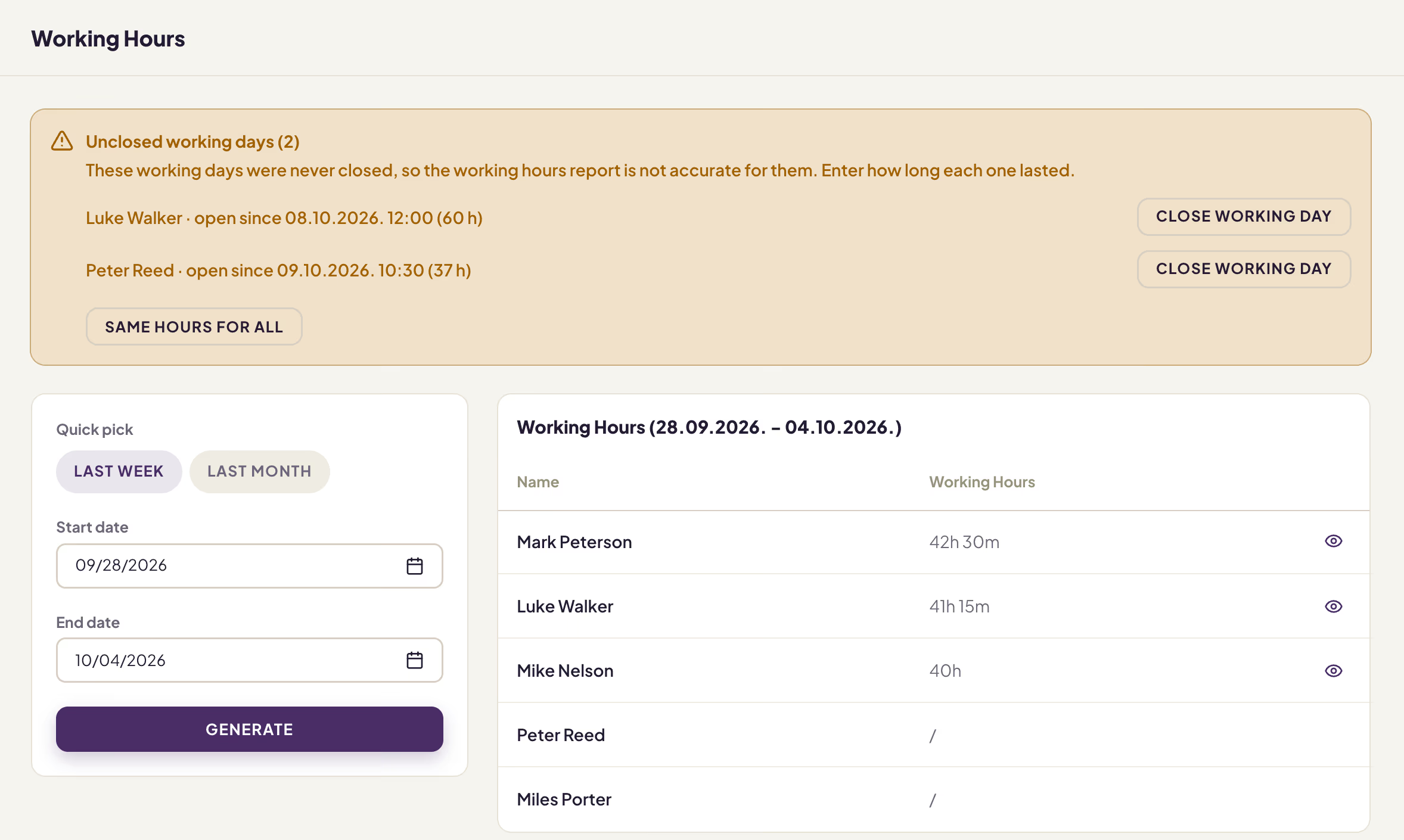
Working Hours — unclosed working days are shown above the overview, whatever the period
Unclosed working days
When a working day has not been closed, an Unclosed working days warning with the number of such days is shown above the overview, five per page. The warning does not depend on the chosen period and disappears once you close all the days.
| Row in the warning | Meaning | Button |
|---|---|---|
| Marko · open since 02.10.2026. 14:17 (40 h) | The working day has been open for more than 16 hours — the employee did not end it. | CLOSE WORKING DAY |
| Marko · working day of 04.10.2026. 08:00, hours not entered | The employee logged in at the register again without ending the previous working day, which had been open for more than 16 hours — the new login started a new working day. That day counts as 0 hours until you enter its duration. | ENTER HOURS |
To close a working day:
- Click CLOSE WORKING DAY or ENTER HOURS in that day's row.
- Under "How long did this working day last?", enter the Hours and Minutes. Below the fields, the app shows when the working day ends.
- Click CONFIRM.
The working day ends that long after its start, and the displayed working hours overview is refreshed. A working day can last at most 24 hours, and cannot end after the start of the same employee's next working day or in the future — otherwise the app reports "This working day can last until … at the latest."
When there are two or more forgotten days, the SAME HOURS FOR ALL button enters the same duration for all listed days, on all pages. Days for which that duration is too long stay in the list — enter them one by one.
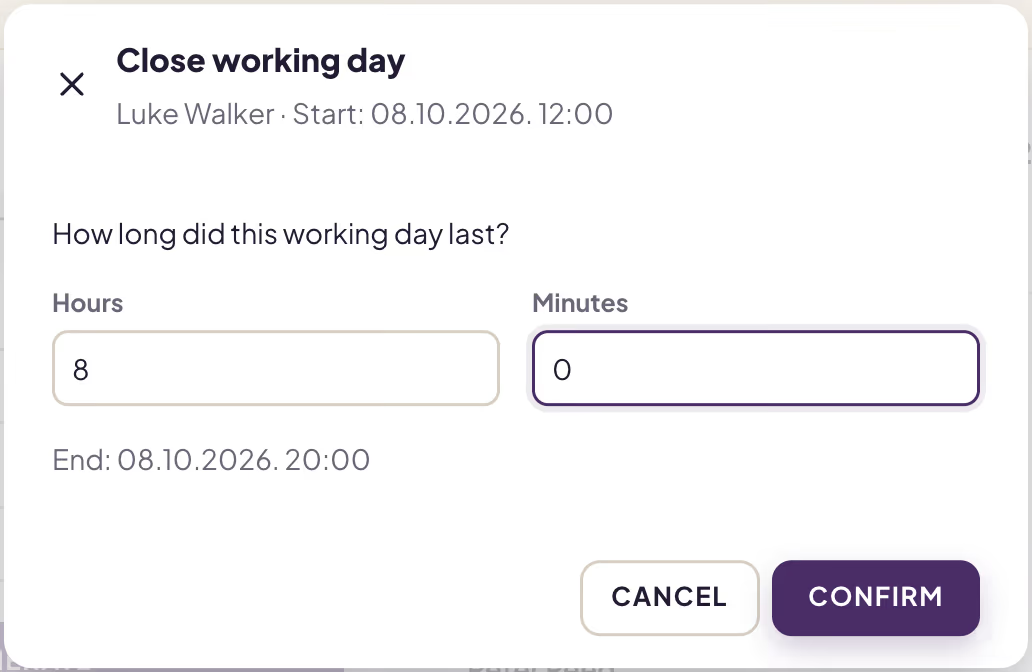
Enter how long the working day lasted — the app shows when it ends
Warning
Close only working days that have really ended. If the employee is still working at the register and you close their working day, their further time is not recorded until their next login.