

Switch theme
Beginning Inventory, Inventory Count and Write-Off
With a beginning inventory you enter the goods you start inventory accounting with, and correct the stock after an inventory count. With a write-off you remove goods that are damaged, expired or missing from stock. Both documents take effect only once you book them (see Inventory Accounting → Draft, booking and unbooking).
Availability
The Beginning Inventories and Write-Off pages are available when the venue keeps inventory accounting. Write-Off requires the Write-Off permission, and Beginning Inventories the Beginning Inventories and Write-Off permissions. Without the Write-Off permission, the page opens but the list does not load.
What do you want to do?
| Situation | Action |
|---|---|
| You are starting inventory accounting and entering goods by hand | First beginning inventory |
| Your items already have quantities and prices, and you only carry them over | Automatic beginning inventory |
| You have many items and prefer to enter them in Excel | Export and import in Excel |
| You have counted your goods | Inventory count |
| Goods are damaged, expired or missing | Write-off |
How a beginning inventory works
A beginning inventory sets the stock of each item on the document to the entered quantity and gives it the selling and purchase price from the document. From then on, the stock is calculated like this: the quantity from the last booked beginning inventory, plus price calculations, minus write-offs and sales, plus refunds.
The quantities on a beginning inventory apply from the start of the day entered as the document date — all sales on that day are subtracted from them. A new beginning inventory does not delete the old ones: it only becomes the new starting point for the items it contains.
In a new venue with inventory accounting, goods have neither stock nor a price until you book the first beginning inventory or price calculation: goods for sale that you add by hand or import from a file get a selling price, stock and purchase price of 0 (see Inventory → Import items). If the venue previously worked without inventory accounting, the items keep their quantities and prices, and you can create an automatic beginning inventory from them.
First beginning inventory
- In the menu, choose Inventory Accounting → Beginning Inventories and click ADD. The Beginning inventory document opens in DRAFT status.
- In the Document info section, check the Date and the Number (suggested, for example 26/1). The Description is optional.
- Click + ADD ITEM (or press =). The Add item window opens.
- In the Inventory item field, search for the item and click it. The search offers only goods (no services and no items made of ingredients), and the item must have a tax rate — an item without one cannot be chosen. The + icon next to the field opens the form for a new item (see Inventory).
- Check the Quantity — the app fills in the item's current stock, if it is not negative. Enter the actual quantity.
- Check the Purchase price and Selling price (after tax or before tax — the other field is calculated automatically). The app fills them in from the item's details. All four prices are required and must be greater than zero. The purchase and selling values are calculated automatically.
- Click SAVE AND NEXT and repeat for the other items; for the last one, click SAVE.
- Click BOOK (or SAVE, if you will book it later).
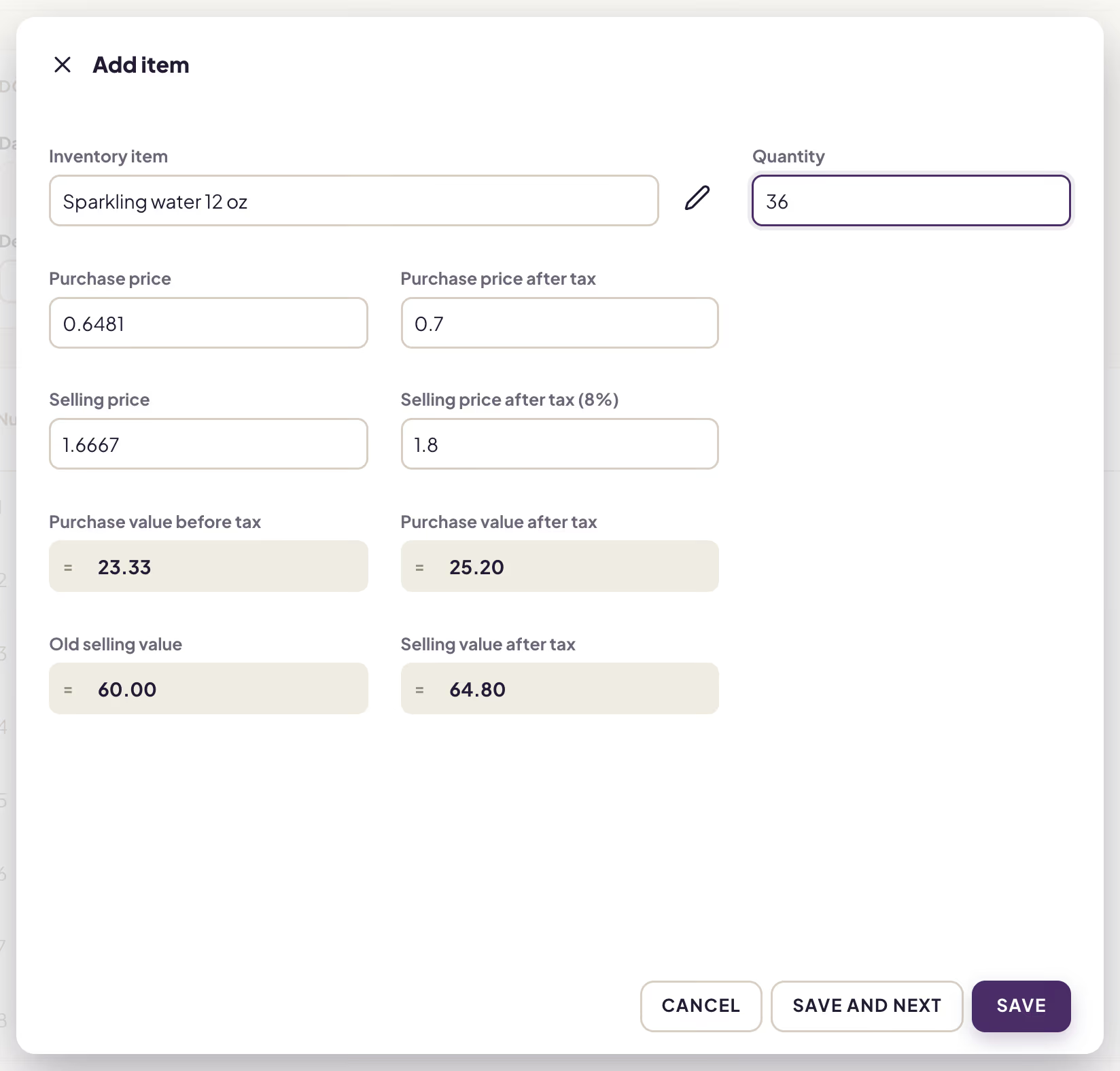
Add item window: the prices come from the item, the values are calculated
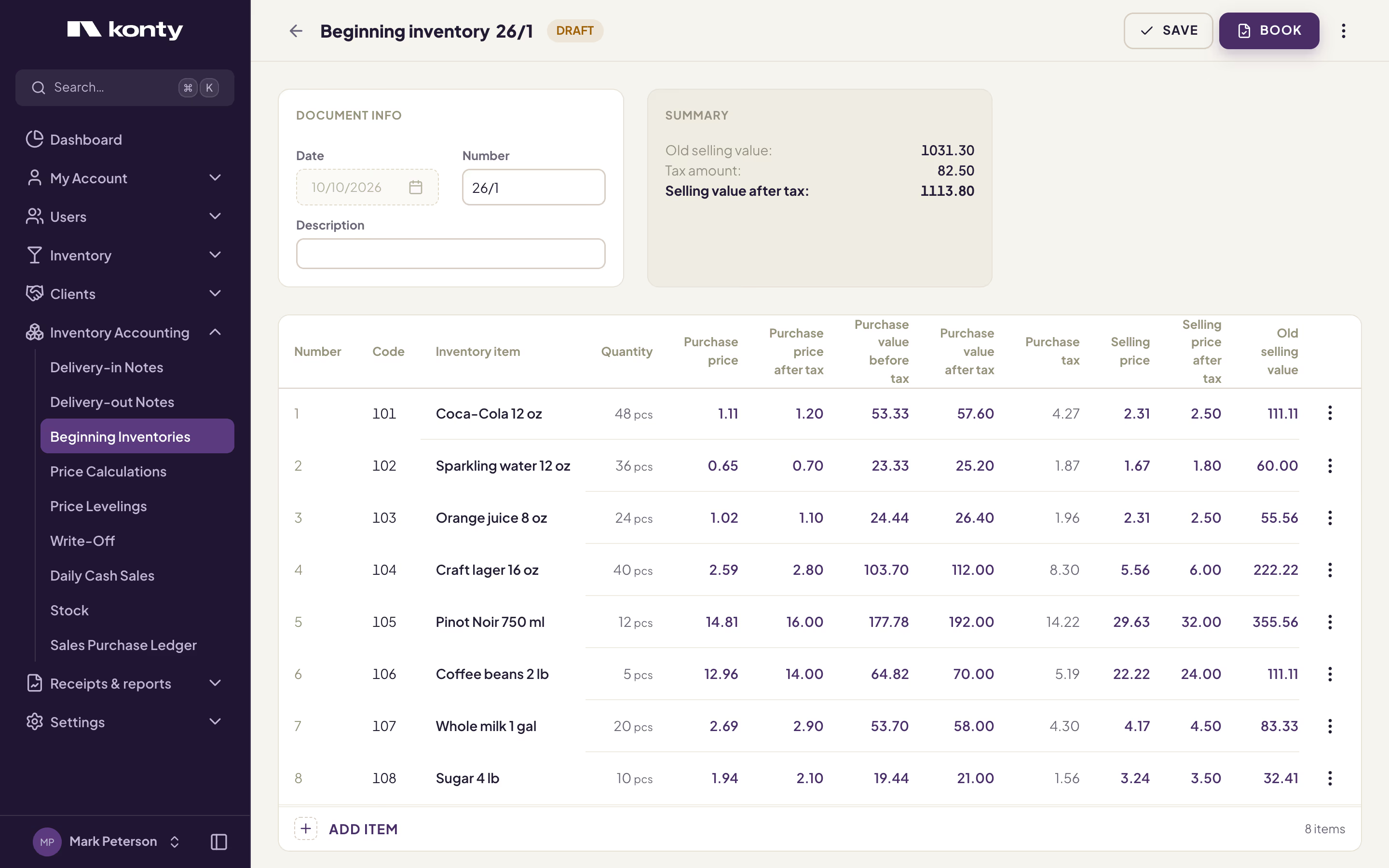
A beginning inventory with its items, before booking
After booking, the stock and prices of the items on the document apply immediately, at the registers too. Enter all items on one document — you do not need a separate document for each item.
When the chosen item is an ingredient, the window reminds you: "When entering ingredients, also enter their purchase prices."
Automatic beginning inventory
If the items in the app already have quantities and prices, the app can create a beginning inventory from them by itself.
- In Inventory Accounting → Beginning Inventories, open the ⋮ menu in the header and choose Auto-create from current stock. When there are no documents in the chosen period, the CREATE FROM STOCK LIST button in the empty list does the same.
- The app creates a new document with today's date, a number in the form 26/AUTO/1 and the description "Automatsko početno stanje" (automatic beginning inventory). It contains all goods that have a tax rate (without items made of ingredients), with their current stock and prices.
- Open the document by clicking its row and check the items. Correct the quantities and prices, or correct them in Excel (see Export and import in Excel).
- Click BOOK.
The document is created as a draft and changes nothing until you book it.
Warning
Before booking, check the items with a negative quantity (goods sold but never received) and enter the actual quantity. Create and book the document before the first sale of the day: its date is today, so today's sales, which are already included in the current stock, would be subtracted a second time.
Beginning inventory list
The list shows the date, whether the document is booked, the number, the description and the purchase and selling values, before and after tax. The search finds documents by number and description, and in FILTERS you choose the period. The ⋮ menu in a row offers Print (booked beginning inventory), View and Delete (draft). When asked "Permanently delete beginning inventory?", click CONFIRM.
Export and import in Excel
You can edit the quantities and prices of a beginning inventory in Excel and bring them back into the document. The import changes only the items already on the document.
- Open a saved beginning inventory in DRAFT status.
- In the ⋮ menu in the header, choose Export. The file
beginning-inventory.xlsxis downloaded. Its column headings are in Serbian: Broj (number), Sifra (code), Barkod (barcode), Artikal (item), Stopa poreza (tax rate), Količina (quantity), the purchase prices and values (Nabavna…), the selling prices and values (Prodajna…), and a hidden ID column. - In the file, change the Količina column (quantity) and, if needed, Nabavna cena (purchase price) and Prodajna cena (selling price). The columns with tax and the values are formulas and calculate themselves. Save the file.
- In the ⋮ menu, choose Import. In the import window, choose the file.
- If you want the prices from the file to be taken over too, tick Update prices.
- Click IMPORT.
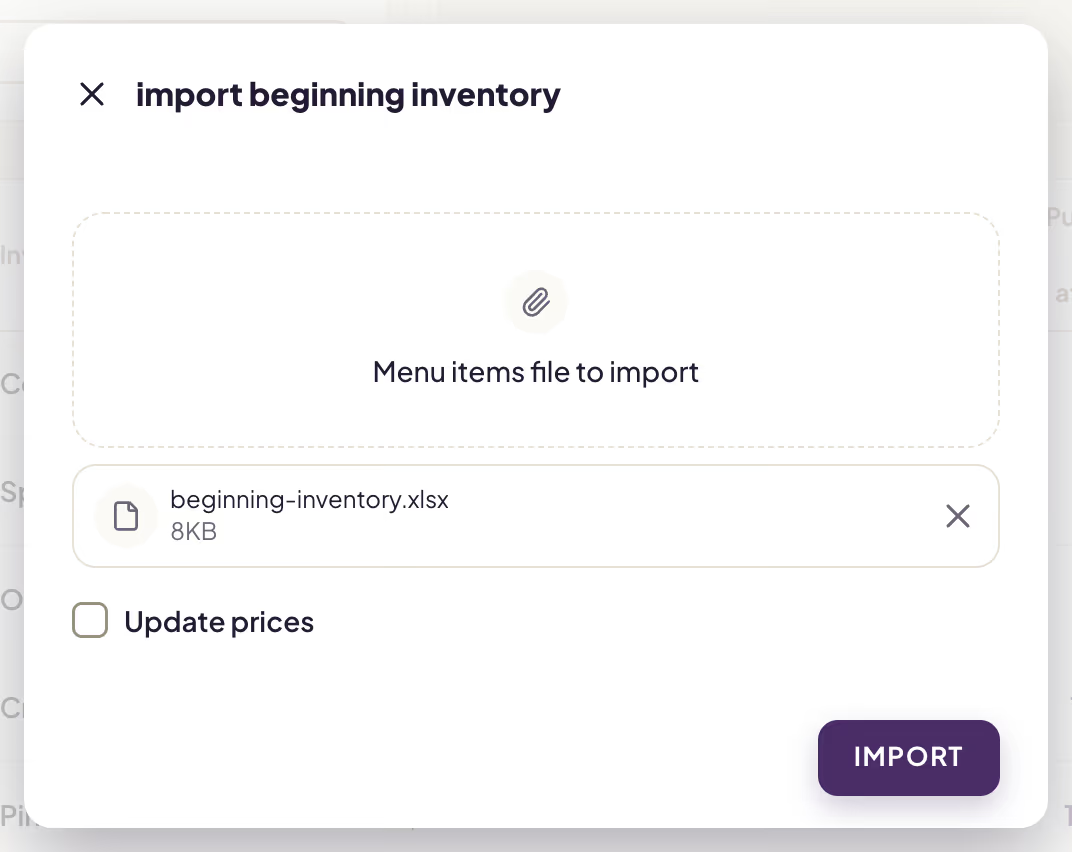
Importing the edited file into the beginning inventory
The app reports "Beginning inventory imported successfully." and shows the document with the new values. Then book it.
Warning
- Do not change the Artikal column or the column headings, and do not delete the hidden ID column — a row is matched to an item by them. A row that matches no item stops the import ("Beginning inventory item not found.").
- Do not delete the last row with the totals: the app always skips the last row.
- The import does not add new items or delete existing ones. First add a new item to the document (+ ADD ITEM).
- Negative quantities are not allowed ("Some inventory items have negative quantities. Please update them and try again.").
- With Update prices, all four price columns must be filled in ("Missing required price columns in the imported file.").
- The import applies to the last saved version of the document. If the document has unsaved changes, the app asks "Discard unsaved changes?" — DISCARD AND IMPORT discards them; to keep them, save the document first.
Import is available only for a saved draft, and Export for every saved document.
Inventory count
An inventory count means counting every item in stock and writing down the quantities. You enter the counted quantities in the app as a new beginning inventory — from then on, inventory accounting works with those quantities, so both shortages and surpluses are corrected. The app has no separate document for an inventory count.
- Before the first sale of the day, create an automatic beginning inventory. It contains the book stock of every item of goods.
- Export it (⋮ → Export) and use the file as your count sheet. For the counting itself, you can also use the Excel file of the Stock report in Sales Reports (the Current stock, Inventory count and Difference columns), but that file cannot be imported — copy the counted quantities from it into the Količina column of the exported beginning inventory.
- Count the goods and enter the counted quantities in the Količina column.
- Import the file (⋮ → Import) and check the document.
- Click BOOK.
The stock of each item of goods on the document becomes the counted quantity.
Warning
Finish and book the inventory count on the same day you created the document, before the first sale. The quantities on a beginning inventory apply from the start of its date, so sales issued that day before the count would be subtracted twice.
When only a few items are missing (breakage, theft, expiry), create a write-off instead of a new beginning inventory.
Write-off
With a write-off you remove goods from stock that are damaged, expired, scrapped or missing.
- In the menu, choose Inventory Accounting → Write-Off and click ADD.
- In the Document info section, check the Date and Number, and enter the reason for the write-off in the Description (for example "Write-off of damaged goods").
- Click + ADD ITEM (or press =) and choose the Inventory item. The search offers goods with stock greater than zero and items made of ingredients; an item without a tax rate cannot be chosen.
- In the Quantity field, enter how much you are writing off. The selling prices and values in the Item price section are filled in automatically.
- Click SAVE (or SAVE AND NEXT for more items).
- Click BOOK.
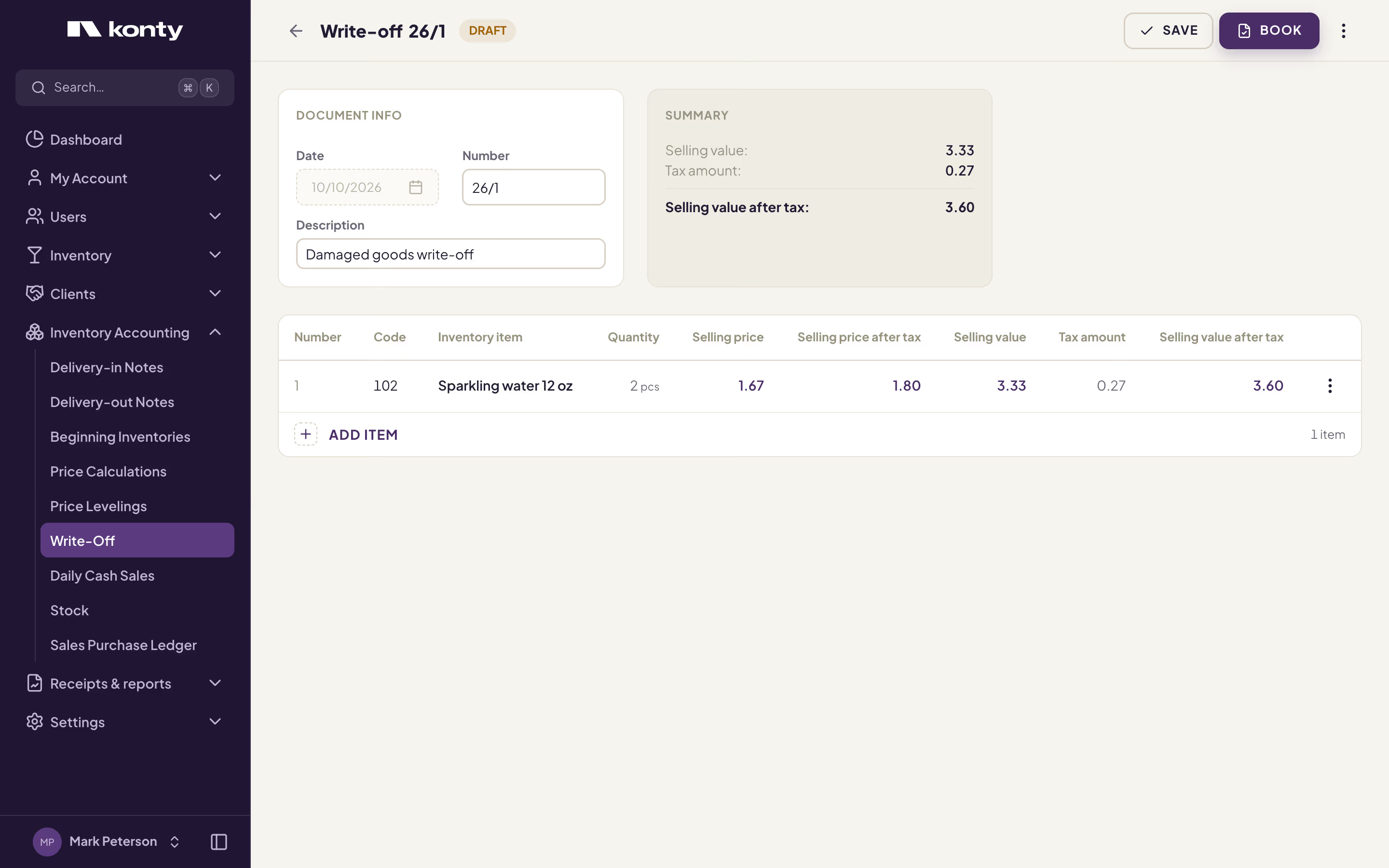
A write-off before booking
After booking, the stock of the written-off goods decreases. For an item made of ingredients, the stock of its ingredients decreases. In the Sales Purchase Ledger, the write-off appears as a negative amount at selling value. UNBOOK returns the goods to stock.
Warning
When you choose an item, the Quantity field is filled in with the item's whole current stock. Always enter the quantity you are writing off — otherwise you write off all the goods of that item. The quantity cannot be greater than the stock (except for an item made of ingredients), and the item must have a selling price.
The list of write-offs shows the date, whether the document is booked, the number, the description and the selling values. In FILTERS you choose the period. The ⋮ menu in a row offers Print (booked write-off), View and Delete (draft); when asked "Permanently delete Write-Off?", click CONFIRM.