

Switch theme
Stock, Stock Item Transactions, Sales Purchase Ledger and Daily Cash Sales
These pages show the result of your documents and sales: how much stock you have and what it is worth (Stock), how the stock of one item changed (Stock Item Transactions) and the turnover at selling prices (Sales Purchase Ledger). They fill in by themselves from booked documents and issued receipts. The only thing you enter here is the daily cash sales — cash handed over to the bank.
Availability
The Stock, Sales Purchase Ledger and Daily Cash Sales pages are available when the venue keeps inventory accounting, and require the user group permissions of the same name. Stock item transactions open from Stock. A venue without inventory accounting sees its stock in Inventory Items and in the Stock report in Sales Reports.
Stock
Inventory Accounting → Stock shows all goods with their current stock and value. Services and items made of ingredients are not on the list.
| Column | What it shows |
|---|---|
| Code, Name | The item |
| In stock | The current stock |
| Purchase: Price, Price after tax, Value, Value after tax | The purchase price and the value of the stock at purchase price. A slash (/) means the item has no purchase price yet. |
| Selling: Price, Price after tax, Value, Value after tax | The selling price and the value of the stock at selling price |
The TOTAL row adds up the values of all items that match the search and the filter, not only the page shown. Clicking a row opens the item's transactions.
Search and stock filter
- In the search field, type the item's name, code or barcode.
- Click FILTERS. In the Preview field, choose All, Greater than, Less than or Equal, and enter a quantity in the In stock field. Click APPLY. For example, Greater than 50 shows only goods with stock greater than 50; Less than 1 shows both goods you are out of and goods with negative stock.
- To show the whole list again, remove the filter (or choose All).
Printing and export
- EXPORT downloads an Excel file with all items that match the search and the filter.
- PRINT opens the print window for the stock list, with the venue's name, TIN and today's date.
Warning
PRINT prints only the items on the page of the list currently shown, with that page's totals, and skips items with a stock of 0. To get the whole list on paper, increase the number of rows per page (up to 200), or export the list to Excel and print the file.
Stock item transactions
An item's transactions show every input and output of one item, by document: beginning inventories, price calculations, price levelings, write-offs, sales and refunds. You open them by clicking an item in Stock.
The page title is the item's name, with its Code and current stock (In stock) below it. Each row is one document:
| Column | What it shows |
|---|---|
| Date, Document, Document number | The document that changed the stock, for example "Beginning Inventory no. 26/1", "Price Calculation no. …", "Price Leveling no. …", "Write Off", "Receipt - Sale", "Receipt - Refund", "Credit Note - Refund" |
| Client | The supplier on the price calculation |
| Selling price, Selling price after tax | The price at which the change was recorded |
| In | The quantity that came in (beginning inventory, price calculation, refund) |
| Out | The quantity that went out (sale, write-off) |
| In stock | The item's stock after that document. The item's current stock is shown below the page title. |
| Selling value, Selling value after tax | The value of the change at selling price |
The document name is colored: inputs green, outputs red. In FILTERS you choose the period (the last month by default). PRINT prints the rows on the page shown. The back button returns you to Stock with the same search and filter.
Sales Purchase Ledger
The Sales Purchase Ledger records the turnover of goods at selling prices after tax, day by day. It fills in by itself from the goods documents, sales and daily cash sales — nothing is entered in it by hand.
| Column | What it shows |
|---|---|
| Date, Description | The date and the document, for example "Beginning Inventory no. …", "Price Calculation no. …", "Price Leveling no. …", "Auto Price Leveling - Price Calc no. …", "Write Off", "Daily Sales", "Daily Returns" |
| Output | The value of the goods that came in, at selling price: beginning inventory, price calculations, returned goods and price levelings (a price increase is positive, a decrease negative). A write-off is entered as a negative amount. |
| Input | The goods sold that day, the amount charged |
| Cash Sales Payment Date, Cash Sales Amount | The daily cash sales paid in for that day, from the Daily Cash Sales page, next to the "Daily Sales" row |
The TOTAL row adds up the whole chosen period.
- In FILTERS you choose the period (the last month by default) and Show: Goods, Service or Goods and services. Goods is the default.
- EXPORT downloads an Excel file for the chosen period and the Show choice.
- PRINT prints the ledger as a form, with the company and venue name and the period. The rows on the page shown and the totals of the whole period are printed — to print the whole period, increase the number of rows per page.
Daily Cash Sales
On the Daily Cash Sales page you record the cash handed over to the bank: which day's takings it is, when it was paid in and the amount. The payment is shown in the Sales Purchase Ledger, next to that day's sales.
- In the menu, choose Inventory Accounting → Daily Cash Sales and click ADD.
- In the Daily Cash Sales window, fill in the fields:
- Date — the day whose takings you are paying in;
- Cash sales payment date — the day you paid the money in;
- Cash sales amount — the amount paid in.
- Click SAVE. CANCEL closes the window without saving.
There can be only one payment per day — if one already exists for the chosen date, the app reports an error, and you choose another date or edit the existing payment. The dates cannot be in the future.
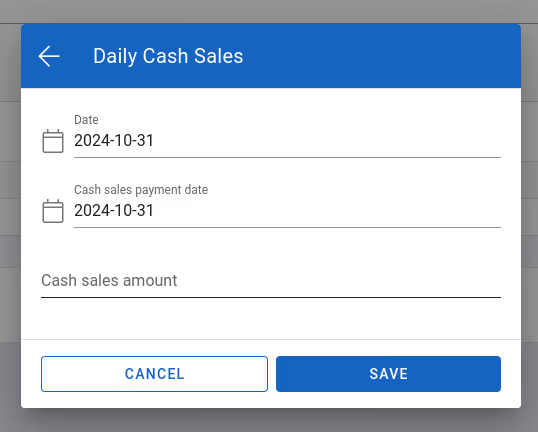
Entering a daily cash sales payment
The list shows the Date, Cash sales payment date and Cash sales amount, with a TOTAL row for the chosen period (in FILTERS, the last month by default).
- Editing: click the row (or choose Edit in the ⋮ menu), change the details and click SAVE. Before saving, check the Cash sales payment date: when editing, the window fills it in with the takings date, not the saved payment date.
- Deleting: in the ⋮ menu, choose Delete, then click CONFIRM when asked "Delete daily cash sale payment?".